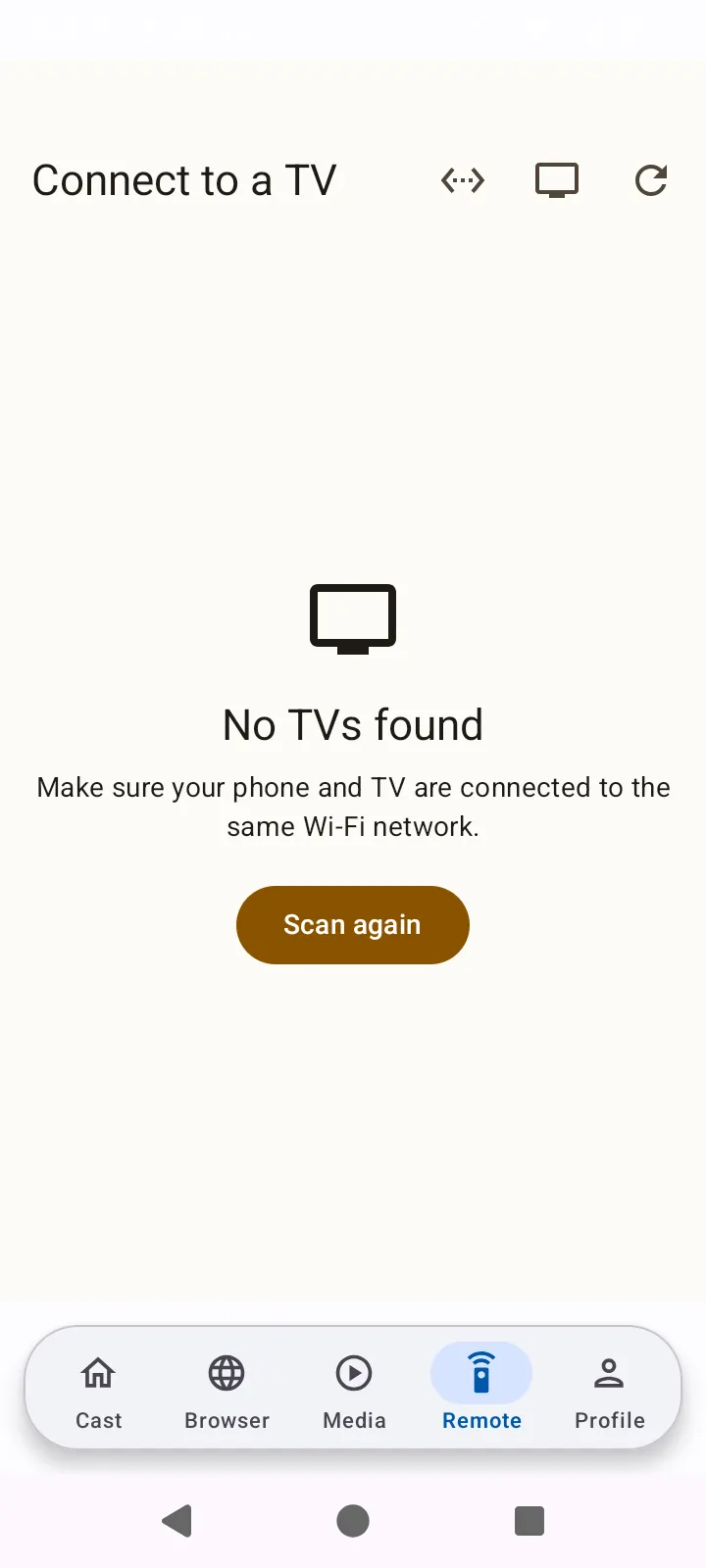
Why does my TV not appear in the list of devices?
In most cases the phone and the TV do not share a mirroring protocol, so the TV can never appear no matter how long you scan. Check your pair first. If they are compatible, the usual causes are the two devices being on different Wi-Fi bands or networks, or the TV's mirroring mode being switched off.
Step by step
- Check protocol compatibility before anything else
This is the step every other guide skips. A Google Pixel has no Miracast sender, and a Samsung or LG TV has no Chromecast built-in. That pair shares no protocol, so the TV will never appear in the list. No app setting, restart, or router change fixes this. Run the compatibility check first so you are not troubleshooting a problem that has no software solution.
- Put both devices on the same network and the same band
Many routers present 2.4GHz and 5GHz as separate network names. A TV on the 2.4GHz network and a phone on the 5GHz network will not discover each other even though both say they are connected. Join both to the same SSID. If the TV is on Ethernet, try Wi-Fi instead - some TVs only advertise mirroring on the wireless interface.
- Turn on mirroring at the TV
On Roku, set Settings, System, Screen mirroring mode to Always allow - the default Prompt setting silently fails the first attempt. On LG webOS, open the Screen Share app on the TV first and leave it in the foreground. On Hisense VIDAA, enable Anyview Cast under Settings, Network. On Fire TV, hold the Home button and look for Mirroring; if it is absent, your device does not support it.
- Disable AP isolation and VPNs
Guest networks and many mesh systems enable client isolation, which blocks devices from seeing each other. Move both onto the main network. An active VPN on the phone also prevents local discovery - turn it off while mirroring.
- Restart in the right order
Power the TV off at the wall for 30 seconds, then back on. Restart the phone. Order matters: the TV advertises itself on the network, so it needs to be up and broadcasting before the phone scans.
What cannot be fixed
When to use a different method
If your devices are genuinely incompatible, a USB-C to HDMI adapter is the fastest reliable fix. Adding a Chromecast or Google TV streamer is the best option if you want to stay wireless.
Related
- Why does screen mirroring keep dropping out?
- Why is there no audio when I mirror to my TV?
- Check whether your phone and TV are compatible at all
CastDone is independent of the television manufacturers and platform owners named on this site. We are not affiliated with, endorsed by, or sponsored by Hisense, Samsung, LG, Sony, TCL, Roku, Amazon, or Google. All product names and trademarks are the property of their respective owners. We do publish the Android app documented here - see the About page.
Get it on Google Play