How the app actually works
A screen mirroring app is a discovery and connection layer. It finds compatible receivers on your network, handles the handshake, and hands off to the mirroring protocol your phone already supports. It does not - and cannot - implement mirroring itself.
Last reviewed
What it does
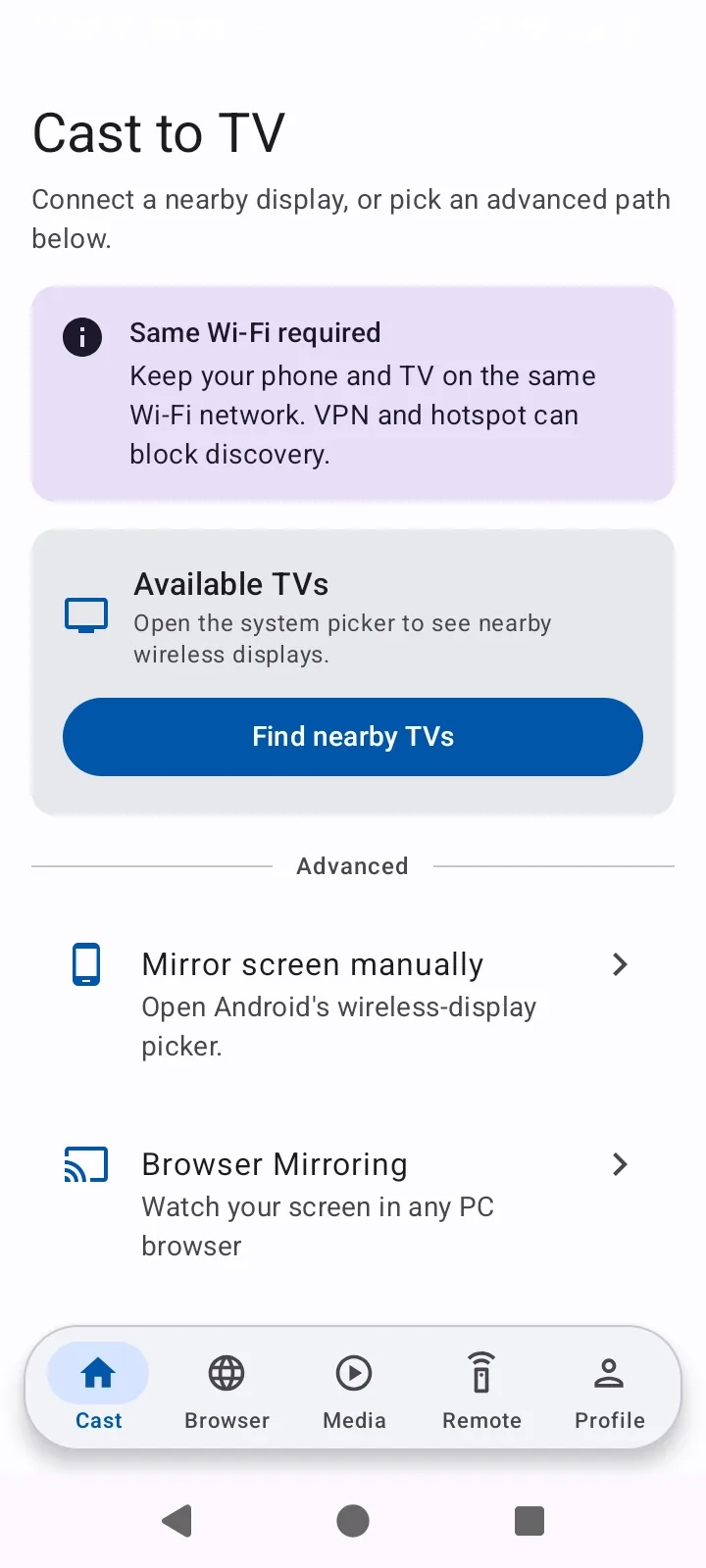
- Finds receivers on your network. It scans over several protocols at once - Android’s own Wi-Fi Display routing, Google Cast, and SSDP for Roku, Samsung, LG and DIAL devices - then presents everything it found in one list. Doing this by hand means digging through three or four different system menus.
- Mirrors through the paths your phone already has. For whole-screen mirroring it uses Android’s media routing to reach a Wi-Fi Display sink, or the Google Cast SDK to reach a Chromecast target. It captures the screen through Android’s MediaProjection API, which is why you see a permission prompt before anything appears on the TV.
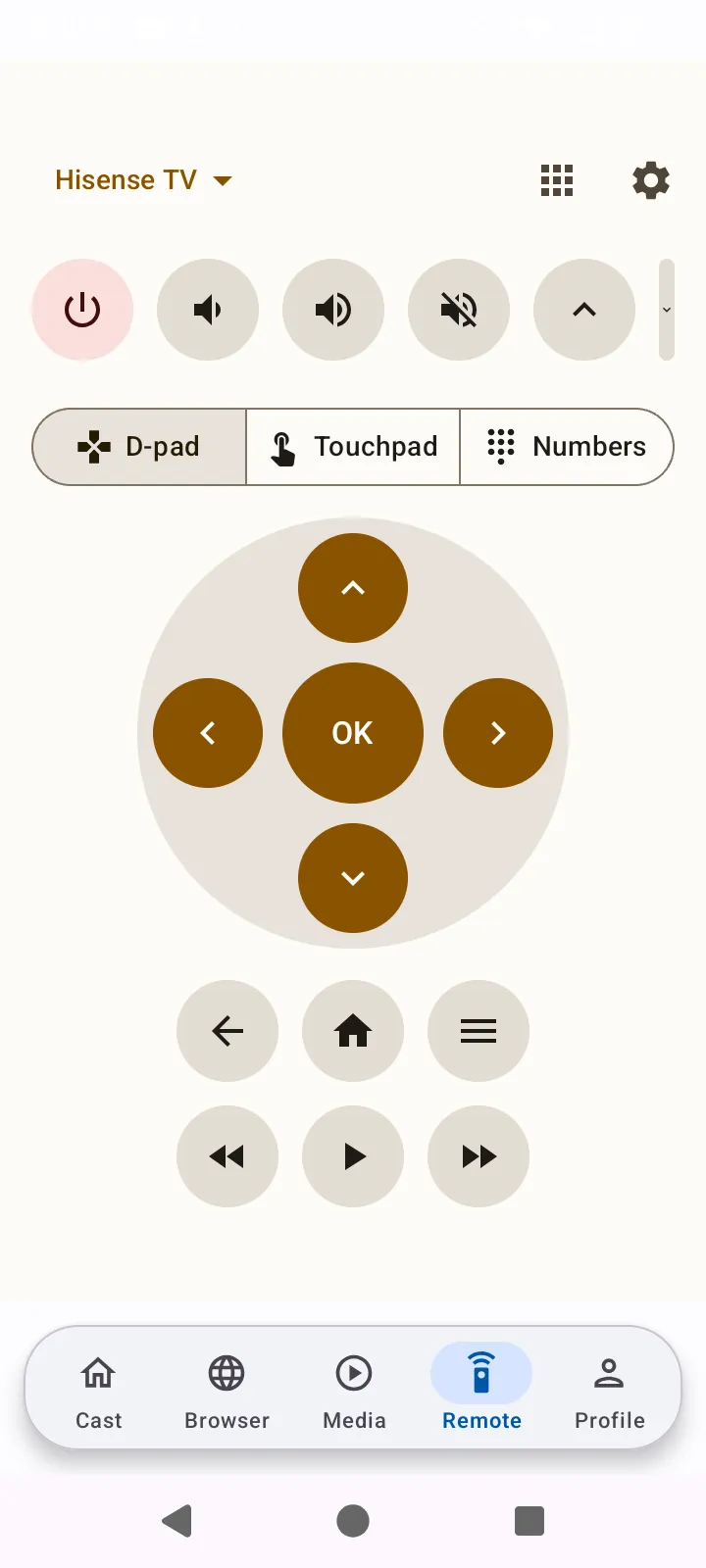
- Acts as a TV remote. Separately from mirroring, it can control Roku, Samsung, LG webOS and Hisense televisions over the network. This works even when your phone and TV cannot mirror to each other, because remote control and mirroring are unrelated protocols.
- Plays your own media. Local music, video, photos and PDFs, plus a built-in browser and YouTube playback, so content that will not mirror can often still be sent or played another way.
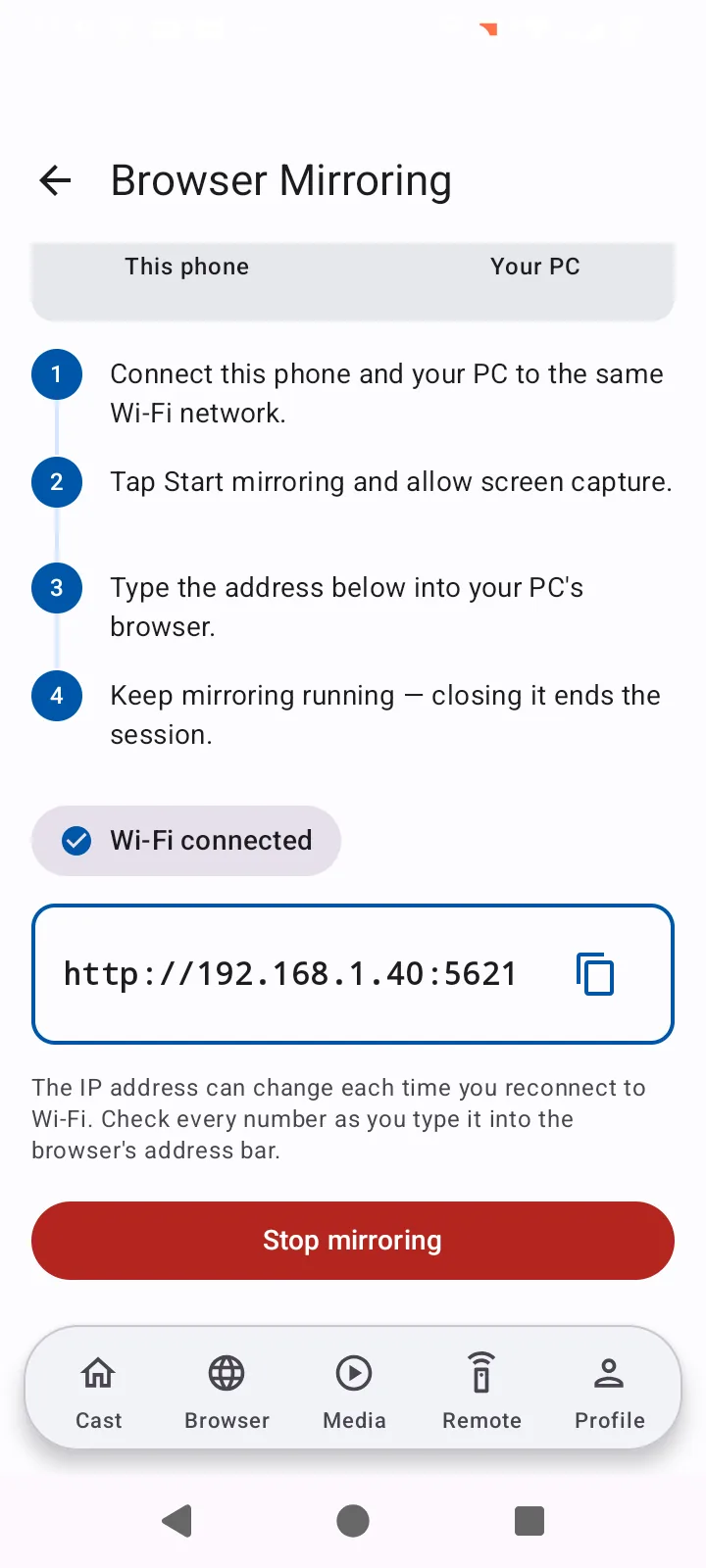
The one thing it cannot do
What happens when you tap connect
- The app asks Android for permission to capture your screen.
- It queries the network for receivers and matches them against the protocols your phone supports.
- You pick a device, and the app either opens the system mirroring picker or negotiates a Google Cast session.
- Your phone encodes the screen continuously and transmits it. This is why the phone gets warm and the battery drains quickly.
Why quality varies so much
Mirroring quality depends on your network, not the app. Miracast makes a direct link that degrades quickly through walls. Google Cast goes through your router and competes with everything else on the network. Expect roughly 100 to 300 milliseconds of latency either way, which is fine for photos, presentations and video, and not fine for gaming despite what the screenshots in this category tend to suggest.
Read the full protocol explainer or check whether your devices are compatible.
Get it on Google Play